
The Importance of Understanding Laptop Hardware Problems
Laptops have woven themselves into the fabric of our everyday existence, serving as indispensable tools for professionals, students, and entertainment enthusiasts alike. Their compact design and versatility have made them the go-to choice for many users. However, with this convenience comes the risk of hardware problems that can arise at the most inconvenient times, leading to disruptions that affect productivity and leisure activities. Whether you are in the middle of an important presentation or binge-watching the latest series, an unexpected malfunction can escalate from a minor annoyance to a major setback.
Enlightening yourself on how to tackle these issues can not only mitigate stress but also empower you to maintain your device effectively. Here are some prevalent hardware problems users often face, accompanied by insights into their implications:
- Overheating: This issue can stem from dust buildup in fans or clogged ventilation. Overheating can lead to automatic shutdowns to prevent damage, as well as reduced performance, especially when performing intensive tasks like gaming or video editing. Regular cleaning and the use of cooling pads can significantly enhance airflow.
- Battery failure: Commonly manifested as shorter usage times or sudden crashes, battery failure is often due to age or poor charging habits. Users might find it beneficial to calibrate their battery occasionally and familiarize themselves with power-saving modes to extend their laptop’s life.
- Screen issues: Flickering screens or dead pixels can be the result of a loose connection, damaged cables, or even outdated graphics drivers. If you encounter screen blackouts, it could be a sign of a failing display or a problem with the graphics card.
- Hard drive failures: Symptoms include unexpected crashes, slow boot times, or loss of data. Utilizing tools like Check Disk on Windows or Disk Utility on macOS can reveal underlying problems. It’s wise to back up important files regularly to an external drive or the cloud to prevent irreversible data loss.
To effectively diagnose these issues, users should adopt a systematic approach. This includes checking connections, performing hardware diagnostics, or even utilizing manufacturer guidelines. Differentiating between hardware and software problems is crucial; misdiagnosing an issue could lead to wasted time and effort.
This exploration of strategies to diagnose and repair laptop hardware problems aims to furnish users with the knowledge and confidence needed to tackle challenges head-on. By being aware of symptoms and employing the correct troubleshooting techniques, not only can you save valuable time and resources, but you can also ensure that your laptop remains a reliable partner in all your personal and professional endeavors.
DISCOVER MORE: Click here to learn about the impact of loading speed on user satisfaction
Identifying Symptoms of Hardware Issues
To effectively address hardware problems in laptops, the first step is to meticulously identify symptoms that may indicate an underlying issue. These symptoms can often escalate rapidly from minor inconveniences to major disruptions if left unaddressed. By recognizing these warning signs early, users can take proactive measures to diagnose and potentially solve the problems before they require costly repairs or replacements.
Here are some common symptoms that may alert you to hardware issues:
- Unusual Noises: If your laptop starts making clicking, grinding, or whirring sounds, it might indicate a failing hard drive or loose components. Be proactive in backing up your data and consider replacing the hardware if the noises persist.
- Frequent Crashes: An increase in unexpected crashes or system freezes can suggest hardware malfunctions, particularly with the memory (RAM) or the motherboard. Conducting memory tests can help isolate the cause.
- Poor Performance: If your laptop shows signs of lagging or sluggishness, it might not only stem from software issues but can also be attributed to hardware limitations or failures. Check for overheating or failing components that could be throttling performance.
- Connectivity Issues: Inconsistent Wi-Fi or Bluetooth connections may point to hardware failures in your network adapter. Checking cables and connectors can be a simple first step to rectify these issues.
Utilizing Built-in Diagnostic Tools
Most modern laptops come equipped with built-in diagnostic tools designed to help users identify hardware problems effectively. These tools can often perform self-tests on key components such as RAM, hard drives, and battery health. Users should learn how to access these tools, as they can save time and effort in diagnosing issues.
For instance, Windows users can find built-in diagnostics by running the Windows Memory Diagnostic or the Check Disk utility. On the other hand, Mac users can utilize Apple Hardware Test or Apple Diagnostics to help pinpoint hardware failures. Familiarizing yourself with these tools and their functionalities can serve as an invaluable asset during the troubleshooting process.
Assessing External Factors
In conjunction with recognizing symptoms and using diagnostic tools, it’s important to assess external factors that could influence hardware performance. Environmental conditions such as excessive heat, humidity, or even physical stress (e.g., drops or spills) can compromise your laptop’s hardware integrity. Regular maintenance, including cleaning vents and ensuring proper ventilation, can greatly aid in preventing overheating and prolonging hardware lifespan.
Additionally, ensuring that your laptop’s software is up to date can prevent compatibility issues that might masquerade as hardware problems. Regularly installing software updates—including firmware and driver updates—can enhance performance and security while also addressing potential bugs that may affect hardware interactions.
By gaining a deeper understanding of the symptoms and leveraging built-in diagnostic tools, users can be better equipped to assess the health of their laptops. This systematic approach paves the way for informed decision-making when it comes to solving hardware problems, ultimately ensuring your laptop remains a reliable companion in your daily activities.
Strategies to Diagnose and Solve Hardware Problems in Laptops
When dealing with hardware issues in laptops, it is essential to adopt a systematic approach to identify and solve problems effectively. Using a blend of diagnostic tools and physical checks can vastly improve your chances of a successful repair. Here are key strategies to consider:
1. Perform Visual Inspections
Before diving into software diagnostics, start with a thorough visual inspection of the laptop. Check for any physical damages, such as cracked screens, loose connections, or damaged ports. Dust accumulation in vent areas can also lead to overheating issues; cleaning these areas can sometimes resolve performance problems.
2. Use Built-in Diagnostic Tools
Most laptops come equipped with built-in diagnostic tools, accessible at startup. For example, manufacturers like HP and Dell provide hardware diagnostics that can perform memory tests and check the health of various components. Accessing these tools can help identify hardware failures before proceeding to more complicated fixes.
3. Booting in Safe Mode
If software issues are suspected alongside hardware malfunctions, booting the laptop in Safe Mode can help isolate the problem. This mode loads only essential drivers, allowing users to determine whether the issue lies software-related or is indeed hardware-centric.
4. Test Components Individually
If you suspect a specific hardware component, consider removing and testing components individually, if possible. For example, reseating and testing RAM sticks or hard drives can help identify faulty hardware that may be causing system instability.
5. Consult Online Resources and Community Forums
Utilizing online resources such as manufacturer websites, forums, and tech blogs can provide valuable insights into common hardware issues. Many users share their experiences and solutions, which can lead to innovative troubleshooting methods.By implementing these strategies, users can enhance their approach to diagnosing and solving laptop hardware problems, potentially saving time and money while gaining a deeper understanding of their devices. An informed approach not only improves repair success rates but also empowers users with knowledge about their laptops.
| Category | Advantages |
|---|---|
| Visual inspection | Identifies physical damage and prevents overheating. |
| Built-in diagnostics | Quick assessment of hardware failure with manufacturer tools. |
| Boot in safe mode | Helps isolate hardware issues by loading only core functionalities. |
| Testing components | Pinpoints faulty parts for replacement or repair. |
DIVE DEEPER: Click here to learn more
Engaging in Hands-On Troubleshooting Techniques
Once you have identified the symptoms and utilized the built-in diagnostic tools, it’s time to move toward more hands-on troubleshooting techniques. Engaging in these methods can empower users to directly interact with their laptop hardware and potentially rectify issues that software diagnostics may overlook.
Performing Visual Inspections
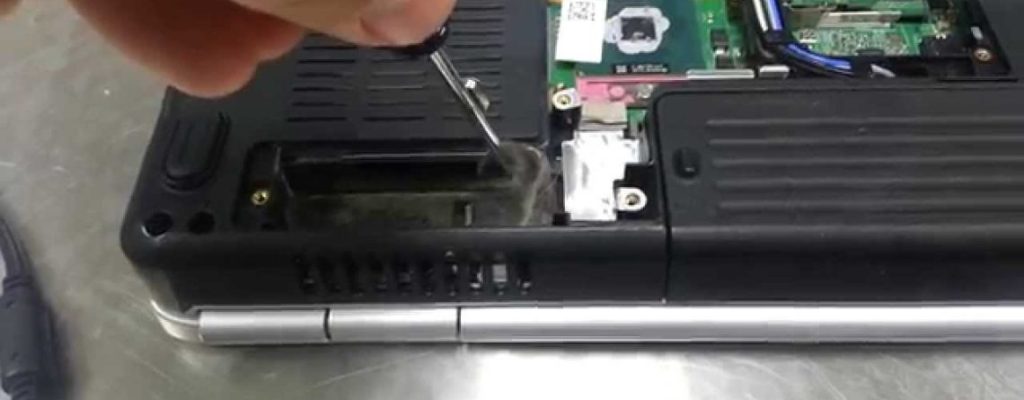
A thorough visual inspection can reveal much about your laptop’s hardware health. Start by examining the exterior for signs of physical damage, such as cracks or dents, which might suggest internal issues. Next, gently open the laptop casing (if you are comfortable doing so) to check for loose cables, damaged connectors, or signs of corrosion. Pay particular attention to the cooling fans and vents; dust accumulation can impede airflow and lead to overheating, thus affecting component longevity and functionality.
If you aren’t inclined to open the laptop yourself, consider seeking professional assistance. Technicians can conduct comprehensive examinations and reveal hidden problems within the hardware that might not be evident during casual use.
Upgrading Components
Another effective strategy in dealing with hardware problems involves upgrading components. If your laptop is showing symptoms of sluggishness, it might be time to consider a RAM upgrade, which can provide a significant boost in performance, especially when multitasking or running demanding applications. Hard drive replacements with Solid State Drives (SSDs) can also enhance boot times and load speeds, improving the overall user experience.
For issues with overheating, replacing or adding thermal paste on the CPU can help improve heat dissipation. This is particularly useful in older models, where thermal paste may have degraded over time. Investing in a cooling pad can aid with airflow, further mitigating heat-related problems.
Utilizing External Equipment for Diagnostic Purposes
In scenarios where internal diagnostics may fall short, external equipment can assist in determining the root of the problem. Tools like USB drive diagnostics or hardware monitoring software can offer insights into performance metrics, effectively assessing if components such as the CPU or GPU are functioning at optimal levels. Applications such as HWiNFO or Speccy track real-time data on temperature, fan speeds, and other critical factors that can influence hardware performance.
Furthermore, by connecting your laptop to an external monitor, you can quickly deduce whether display issues stem from the laptop screen or the graphics card. If the external screen works perfectly, the problem likely lies with the laptop display itself, allowing for more targeted repair efforts.
Engaging the Community and Resources
Diving into online community forums and tech support resources can also prove beneficial when diagnosing and solving hardware issues. Platforms like Reddit, Stack Exchange, and manufacturer forums offer a wealth of knowledge shared by experienced users and professionals who have encountered similar problems. These communities can provide tips for specific models or symptoms, often revealing lesser-known solutions that standard diagnostics overlook.
Moreover, leveraging tech support from the laptop manufacturer might uncover additional troubleshooting strategies. Many companies provide remote assistance or dedicated diagnostic tools that could reveal hardware problems that ordinary users might miss.
Incorporating hands-on troubleshooting techniques, upgrading components, utilizing external equipment, and engaging with community resources create a robust strategy for diagnosing and solving hardware problems in laptops. This hands-on involvement not only empowers users but also enhances their understanding of their devices, making them better equipped to maintain and optimize their laptop performance over time.
DON’T MISS OUT: Click here for essential tips
Conclusion
To successfully tackle hardware problems in laptops, it is essential to adopt a comprehensive approach that combines both technical knowledge and practical skills. By employing hands-on troubleshooting techniques, such as visual inspections and component upgrades, users can often uncover issues that traditional software diagnostics fail to reveal. Upgrades like enhancing RAM or switching to SSDs can significantly improve performance, while consistent cleaning of internal components can prevent overheating, maintaining hardware longevity.
Additionally, leveraging external diagnostic tools can provide valuable insights into the health of critical components like the CPU and GPU, allowing for informed decisions regarding repairs or adjustments. While these techniques empower users to take charge, don’t underestimate the value of community engagement. Platforms like forums and tech support services offer a wealth of shared knowledge to guide you in addressing specific hardware challenges.
In conclusion, being proactive and informed is key to maintaining a laptop’s functionality and efficiency. Embracing these strategies not only enhances your troubleshooting skills but also deepens your understanding of the technology you rely on daily. As you navigate the world of laptop repairs, remember that continuous learning and exploration can lead to greater confidence in handling hardware issues, ensuring your device remains a robust tool for productivity and communication in today’s fast-paced digital landscape.
Related posts:
How to Troubleshoot Printing Issues on Devices: Tips for Flawless Printing
Tips for Troubleshooting Synchronization Issues Between Devices and the Cloud
Adjusting Accessibility Settings: Solutions for Issues in Assistive Devices
How to Identify and Resolve Update Issues in Operating Systems
Tips for Diagnosing and Resolving Software Failures on Desktops and Laptops
Guide to Solving Common Errors in Apps: What to Do When Your App Isn't Working

Beatriz Johnson is a seasoned tech writer and digital tools expert with a passion for simplifying the complexities of technology and mobile applications. With over a decade of experience in the tech industry, she specializes in topics like productivity apps, software reviews, and emerging digital trends. Through her work, Beatriz empowers readers to make informed technology choices and stay ahead in the ever-changing world of apps and innovation.